How Do You Set Up a POS System on an iPad? Aireus Expert Guide
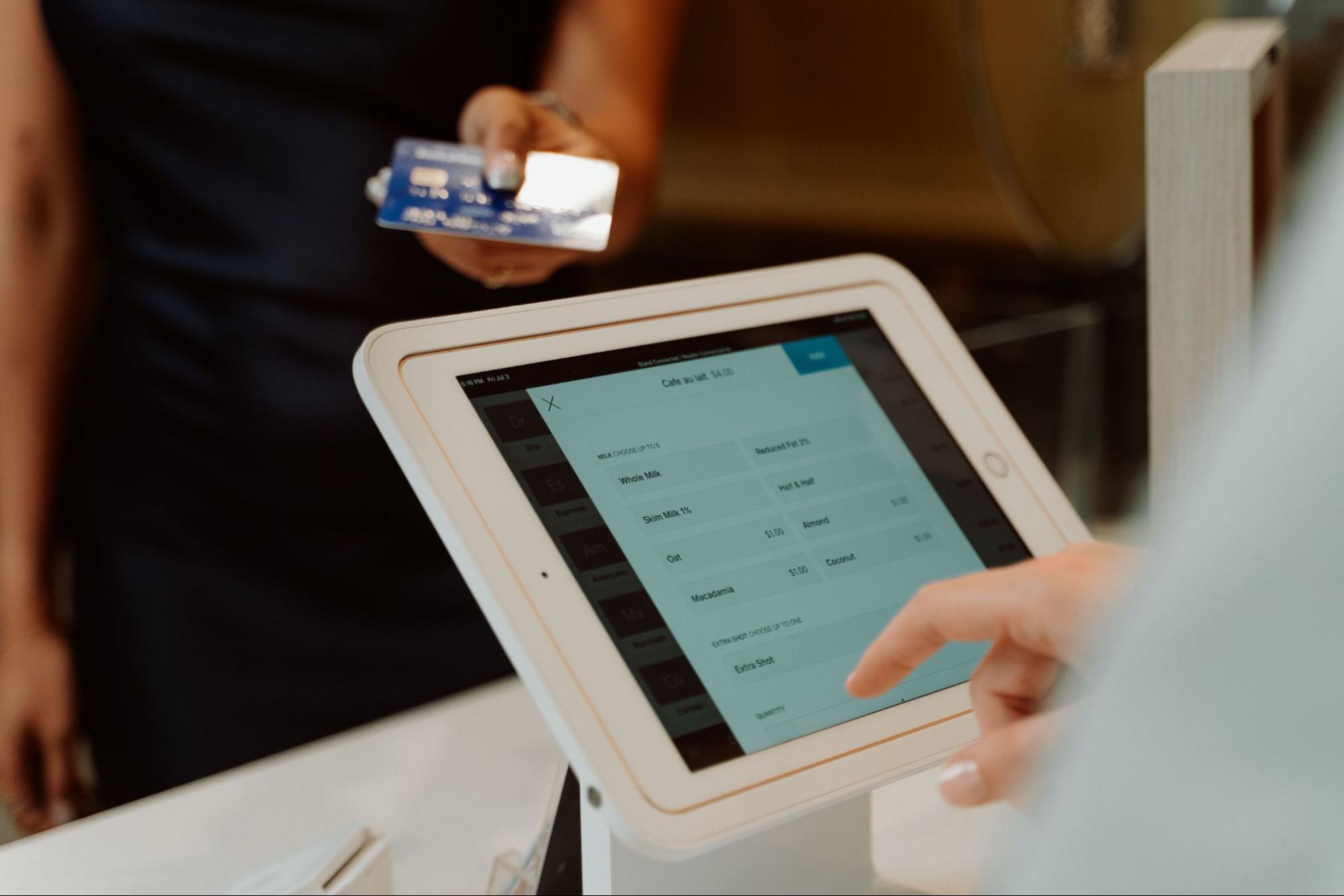
If you've been wondering how to set up a POS system on an iPad, you're not alone. More businesses are replacing bulky checkout terminals with sleek, flexible iPad POS solutions that streamline operations, improve customer service, and make running a business much easier.
Whether you own a retail store, restaurant, café, salon, or boutique, an iPad POS system offers an affordable and efficient way to manage sales.
This guide will walk you through everything you need to know, from choosing the right hardware and software to completing the setup with confidence. With the right approach, you can create a reliable checkout experience that helps your business operate smoothly from day one.
What Is an iPad POS System?
An iPad POS (Point of Sale) system transforms your Apple iPad into a complete business management and payment solution. Beyond processing payments, it allows you to:
- Accept card, mobile wallet, and contactless payments
- Track inventory in real time
- Manage products and pricing
- Monitor sales reports
- Manage employees and permissions
- Print or email receipts
- Build customer profiles and loyalty programs
Since most modern POS systems are cloud-based, you can also access your business information remotely from almost anywhere.
What You Need Before You Begin
Before installing your POS software, gather the essential equipment.
Requirement
Why It Matters
Run your POS application smoothly with the latest iOS version supported.
POS Software
Controls sales, inventory, payments, reporting, and customer management.
Card Reader
Securely accepts debit, credit, and contactless payments.
Receipt Printer
Prints professional customer receipts when needed.
Cash Drawer
Stores cash securely for cash transactions.
Stable Internet Connection
Syncs transactions and inventory in real time.
Secure iPad Stand or Enclosure
Protect your iPad while creating a professional checkout station.
Having the correct equipment from the beginning prevents setup problems later.
Step 1: Choose the Right POS Software
Your POS software is the heart of the entire system.
Instead of selecting hardware first, choose software that fits your business operations. Every POS platform offers different features, so look for one that supports your specific industry.
Consider features such as:
- Inventory management
- Customer database
- Employee management
- Sales reporting
- Multi-location support
- Online ordering integration
- Appointment scheduling
- Loyalty programs
- Offline payment capability
Many modern POS providers also offer automatic software updates, making long-term maintenance much easier.
Step 2: Prepare Your iPad
A properly configured iPad provides better performance and security.
Before installing your POS software:
- Update your iPad to the latest compatible iOS version.
- Charge the battery fully.
- Connect to secure Wi-Fi.
- Disable unnecessary notifications.
- Enable automatic app updates.
- Use a dedicated business Apple ID whenever possible.
If your iPad is several years old, verify that your chosen POS software still supports that model before purchasing a subscription.
Step 3: Install the POS Application
Visit the Apple App Store and download your selected POS application.
After installation:
- Create your business account.
- Sign in.
- Complete your business profile.
- Configure tax settings.
- Set your preferred currency.
- Select receipt preferences.
Most providers include a guided setup wizard that walks you through the initial configuration.
Step 4: Add Your Products and Services
Once your account is ready, build your product catalog.
Include:
- Product names
- Categories
- Prices
- Product images
- SKU or barcode numbers
- Inventory quantities
- Product variations
- Tax rules
Restaurants can also organize menu sections, modifiers, combo meals, and special instructions for kitchen orders.
The more accurate your product information is, the easier daily operations become.
Step 5: Connect Your POS Hardware
Your iPad becomes a complete checkout station after connecting compatible hardware.
Common accessories include:
- Card reader
- Receipt printer
- Barcode scanner
- Cash drawer
- Customer display
- Kitchen printer
- Label printer
Most devices connect through Bluetooth, Wi-Fi, or USB depending on the manufacturer.
Always test each accessory before opening your business for customers.
Step 6: Configure Employee Accounts
If multiple employees use your POS system, create individual user accounts.
Assign permissions based on job roles.
For example:
- Cashiers can process sales.
- Supervisors can issue refunds.
- Managers can access reports.
- Administrators can modify inventory and pricing.
Role-based permissions improve security while providing better accountability for every transaction.
Step 7: Test Every Part of the System
Before your first business day, complete several test transactions.
Verify that:
- Payments process correctly.
- Receipts print successfully.
- Inventory updates automatically.
- Taxes are calculated properly.
- Discounts apply correctly.
- Refunds work as expected.
- Sales appear in reports.
Testing reduces customer issues and increases employee confidence.
Best Practices for an iPad POS Setup
A successful POS setup goes beyond installation.
Keep these recommendations in mind:
- Mount your iPad securely to prevent accidental damage.
- Back up business data through your POS provider.
- Train employees before launch.
- Keep software updated regularly.
- Use strong passwords and two-factor authentication.
- Clean your hardware frequently.
- Replace damaged accessories promptly.
- Monitor sales reports daily.
Small improvements can significantly increase efficiency over time.
Common Mistakes to Avoid
Many businesses experience avoidable setup problems.
Avoid these common mistakes:
- Purchasing incompatible hardware
- Using outdated iPad models
- Skipping employee training
- Ignoring security settings
- Forgetting inventory setup
- Not testing payment processing before launch
- Choosing software based only on price
Selecting the right solution from the beginning saves both time and money.
Ready to Modernize Your Business?
A well-configured iPad POS system can streamline payments, simplify inventory management, and improve customer experiences.
If you're planning to upgrade your checkout process book your Aireus POS demo.
Frequently Asked Questions(FAQs)
1. How do you set up a POS system on an iPad?
A. Install compatible POS software, connect payment hardware, configure products, add employees, test transactions, and begin accepting customer payments confidently.
2. Do I need a card reader for an iPad POS system?
A. Yes. A compatible card reader enables secure credit, debit, contactless, and mobile wallet payment processing directly through your iPad.
3. Can an iPad POS system work offline?
A. Many modern POS systems offer offline mode, allowing temporary transaction processing until your internet connection is restored and synchronized.
4. Is an iPad POS system suitable for restaurants?
A. Yes. Restaurant POS systems support tables, menu modifiers, kitchen orders, tipping, employee management, and payment processing from a single device.
5. How much hardware is required for an iPad POS setup?
A. Most businesses only need an iPad, POS software, card reader, receipt printer, cash drawer, and reliable internet for daily operations.